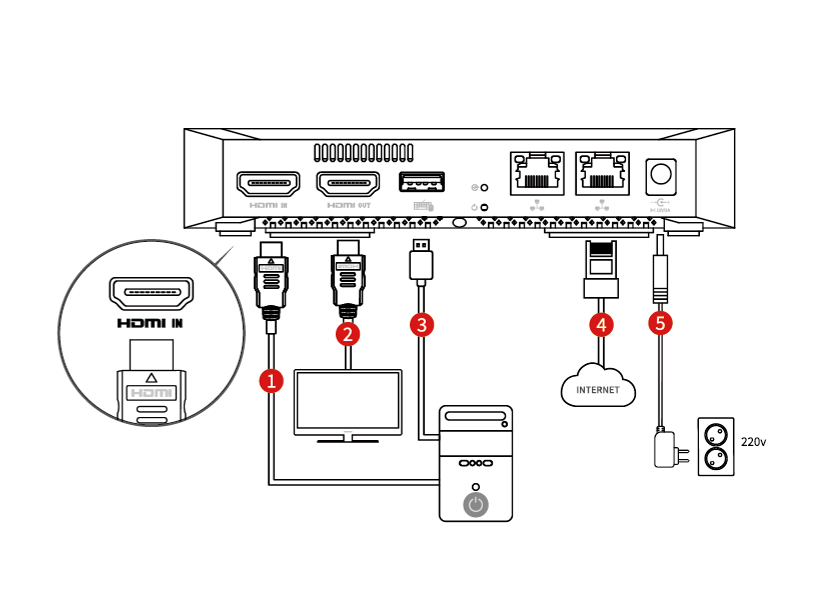
3. Device Connection
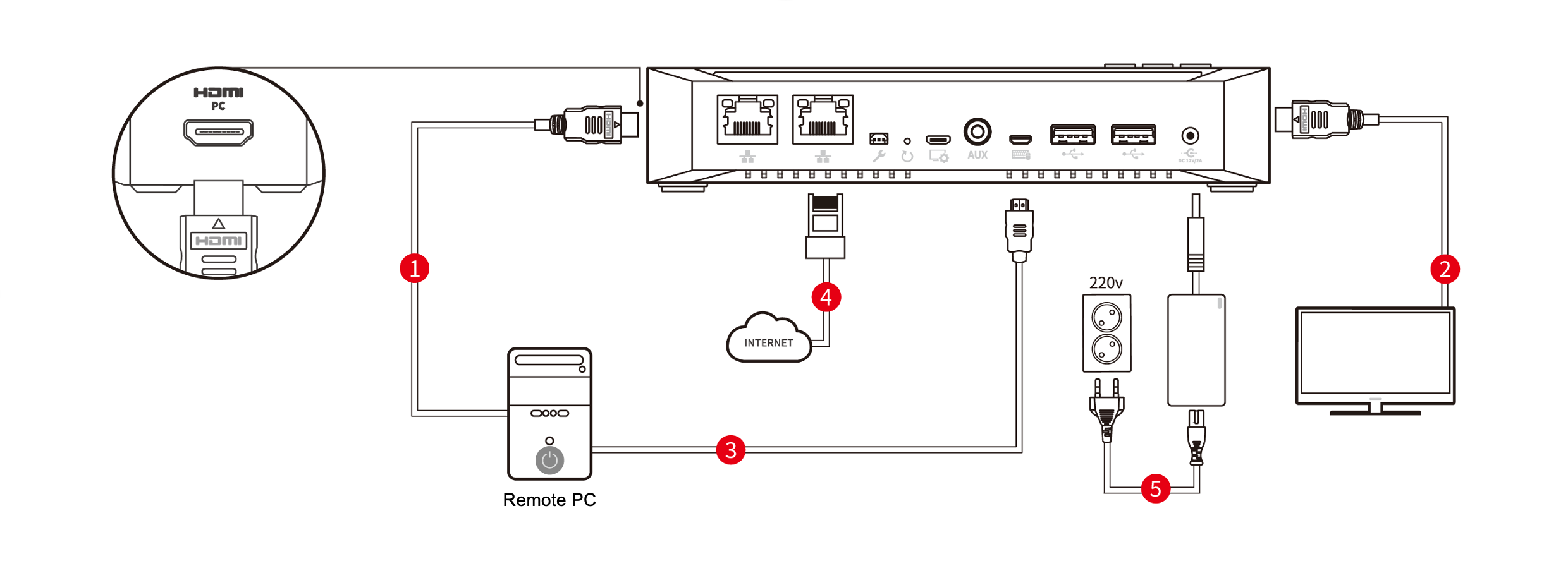
Note: The port layout may differ on earlier RemoteViewBOX models.
Refer to the image in the link when connecting the device.
-
Connect Video and Audio
– Connect the provided HDMI cable from the HDMI output port on the remote PC to the HDMI IN port on the RemoteViewBOX2. -
Connect a Monitor *Optional
– If you want to output the remote PC’s video to a separate monitor, connect an HDMI cable (purchased separately) between the monitor and the HDMI OUT port on the RemoteViewBOX. -
Connect a Mouse/Keyboard
– To enable remote control with a mouse and keyboard, connect the provided USB 2.0 Type A cable between the PC’s USB port and the RemoteViewBOX’s USB port. -
Connect to the Network (Router–RemoteViewBOX)
– Connect a LAN cable from the internet router’s LAN port to the RemoteViewBOX2’s LAN port. -
Connect the Power
– Connect the jack of the provided power adapter cable to the power port on the RemoteViewBOX2, and connect the other end to a power source.
X